Engineering
7 min
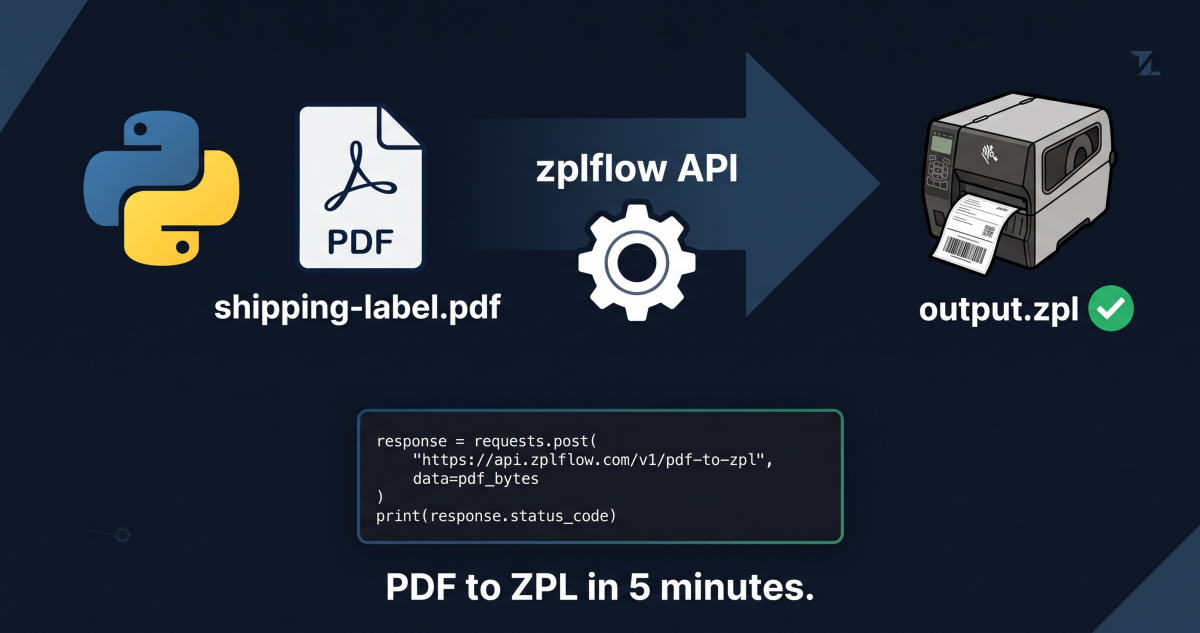
Step-by-step tutorial: convert any PDF to ZPL for Zebra thermal printers using Python and the zplflow API. Complete code example, no ZPL knowledge required.
zplflow team
Jul 21, 2026
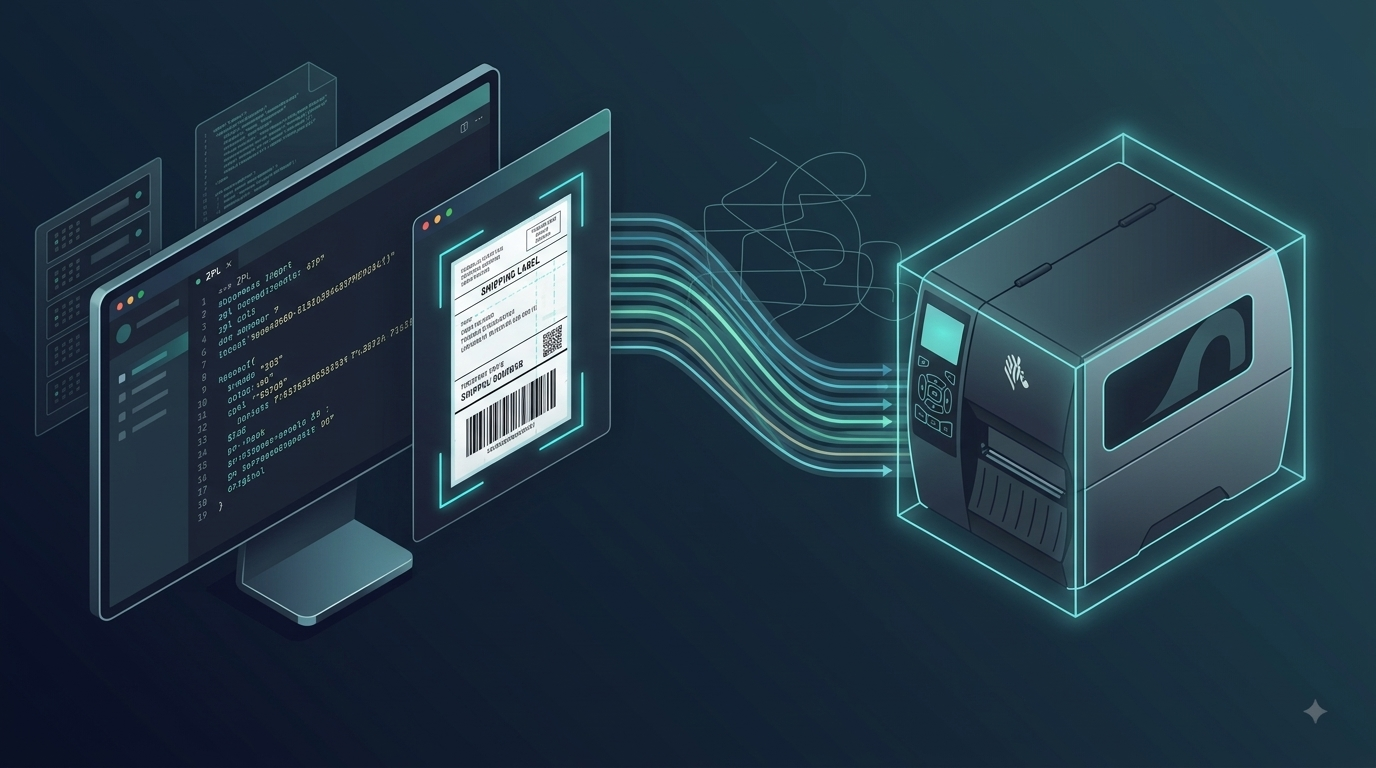
You have a PDF (a shipping label, an invoice, a compliance document) and you need to print it on a Zebra thermal printer. The printer speaks ZPL. Your system generates PDFs. There’s a gap.
This tutorial shows you how to bridge that gap in 5 minutes, using Python and the zplflow API. No ZPL knowledge required.
lb_)pip install requests
That’s it. No ZPL libraries, no printer drivers, no dependencies.
import requests
import base64

API_KEY = "lb_your_api_key_here"

# Read your PDF
with open("shipping-label.pdf", "rb") as f:
    pdf_bytes = f.read()

# Send raw PDF, the API converts it to ZPL
response = requests.post(
    "https://api.zplflow.io/v1/convert/pdf-to-zpl",
    params={
        "dpi": 203,              # 203 for thermal, 300 for high-res
        "width": 101.6,          # label width in mm (4 inches)
        "height": 152.4,         # label height in mm (6 inches)
        "unit": "mm",
        "fit": "contain",        # how the PDF fits the label area
        "max_kb": 64,            # budget: max output size
        "compat_mode": True      # strict ZPL compatibility
    },
    headers={
        "Authorization": f"Bearer {API_KEY}",
        "Content-Type": "application/pdf",
        "Idempotency-Key": "my-unique-key-001"
    },
    data=pdf_bytes               # raw PDF body, not JSON
)

# The response is a JSON envelope: one entry per output label.
# Multi-page PDF input produces multiple entries in pages[].
envelope = response.json()
zpl_pages = [
    base64.b64decode(page["zpl_base64"])
    for page in envelope["pages"]
]

# Concatenate all pages (ZPL is text; labels are delimited by ^XA ... ^XZ)
with open("output.zpl", "wb") as f:
    for zpl_bytes in zpl_pages:
        f.write(zpl_bytes)
        f.write(b"\n")

print(f"Done! {len(zpl_pages)} ZPL label(s) saved to output.zpl")
print(f"Tokens charged: {envelope['tokens_charged']}")
Once you have the ZPL file, sending it to a Zebra printer is trivial:
import socket

def print_to_zebra(zpl_content, printer_ip, port=9100):
    """Send ZPL directly to a Zebra printer over TCP."""
    with socket.socket(socket.AF_INET, socket.SOCK_STREAM) as s:
        s.connect((printer_ip, port))
        s.sendall(zpl_content)
    print(f"Sent to printer at {printer_ip}")

print_to_zebra(zpl_bytes, "192.168.1.100")
That’s it. PDF → ZPL → printer. Three steps.
Each PDF→ZPL conversion has a fixed token cost based on the DPI you choose:
| DPI | Tokens per label |
|---|---|
| 203 (standard thermal) | 3 |
| 300 (high resolution) | 4 |
With the free tier (6,000 tokens/month), you can convert up to 2,000 labels at 203 DPI. With the Starter plan (60,000 tokens at €39/month), that’s 20,000 labels.
Don’t want surprises? Use the estimate endpoint first:
estimate = requests.post(
    "https://api.zplflow.io/v1/estimate",
    headers={"Authorization": f"Bearer {API_KEY}", "Content-Type": "application/json"},
    json={
        "operation": "pdf_to_zpl",
        "params": {
            "dpi": 203,
            "max_kb": 64
        }
    }
)

print(f"Estimated cost: {estimate.json()['tokens_per_document']} tokens per label")
# Output: "Estimated cost: 3 tokens per label"
You always know the cost before you convert a single label.
What if you need to modify the label after conversion? Add a barcode, change text, stamp a date?
Pipelines let you define transformation rules that apply to every label. Create it once, reuse it forever:
# Step 1: define the pipeline
pipeline = requests.post(
    "https://api.zplflow.io/v1/pipelines",
    headers={
        "Authorization": f"Bearer {API_KEY}",
        "Content-Type": "application/json",
        "Idempotency-Key": "create-pipeline-001"
    },
    json={
        "name": "shipping-label-enhance",
        "steps": [
            {"type": "add_barcode", "barcode_type": "code128",
             "x": 100, "y": 200, "height": 50,
             "value": "{{tracking_number}}"},
            {"type": "add_timestamp",
             "x": 50, "y": 500, "font_height": 20,
             "format": "datetime", "timezone": "Europe/Berlin"}
        ]
    }
)

pipeline_id = pipeline.json()["id"]

# Step 2: apply the pipeline to your converted ZPL
result = requests.post(
    f"https://api.zplflow.io/v1/pipelines/{pipeline_id}/apply",
    headers={
        "Authorization": f"Bearer {API_KEY}",
        "Content-Type": "application/json",
        "Idempotency-Key": "apply-pipeline-001"
    },
    json={
        "documents": [{
            "zpl_base64": base64.b64encode(zpl_bytes).decode("utf-8"),
            "variables": {
                "tracking_number": "1Z999AA10123456784"
            }
        }]
    }
)

enhanced_zpl = base64.b64decode(result.json()["results"][0]["zpl_base64"])
print("Pipeline applied!")
Create the pipeline once, apply it to every label that comes through your system. No manual ZPL editing, no text file hunting, no IT tickets.
PDF → ZPL → transformed ZPL. All in one API call.
For high volumes, use the async endpoint. Upload your PDFs to a presigned URL, and the system processes them in the background:
# 1. Get upload URL
upload = requests.post(
    "https://api.zplflow.io/v1/async/upload-url",
    headers={"Authorization": f"Bearer {API_KEY}"},
    json={"content_type": "application/pdf"}
)

# 2. Upload your PDF
requests.put(upload.json()["url"], data=pdf_content)

# 3. Submit conversion job
job = requests.post(
    "https://api.zplflow.io/v1/async/convert",
    headers={"Authorization": f"Bearer {API_KEY}"},
    json={
        "operation": "pdf_to_zpl",
        "dpi": 203,
        "storage_key": upload.json()["storage_key"],
        "callback_url": "https://your-app.com/webhook/zplflow"
    }
)

print(f"Job ID: {job.json()['job_id']} , you'll get a webhook when done")
The complete Python example is also available as a GitHub gist.
zplflow converts PDF to ZPL, transforms labels with programmable pipelines, and prints on any Zebra printer. Free tier: 1,000 tokens/month. No credit card required.
Tag