Engineering
5 min
How to inspect, render, and debug ZPL thermal label streams locally without wasting rolls of thermal paper or walking to the warehouse packing station.
zplflow team
Sep 29, 2026
Every developer tasked with integrating barcode printing into an enterprise stack eventually faces the same absurd bottleneck:
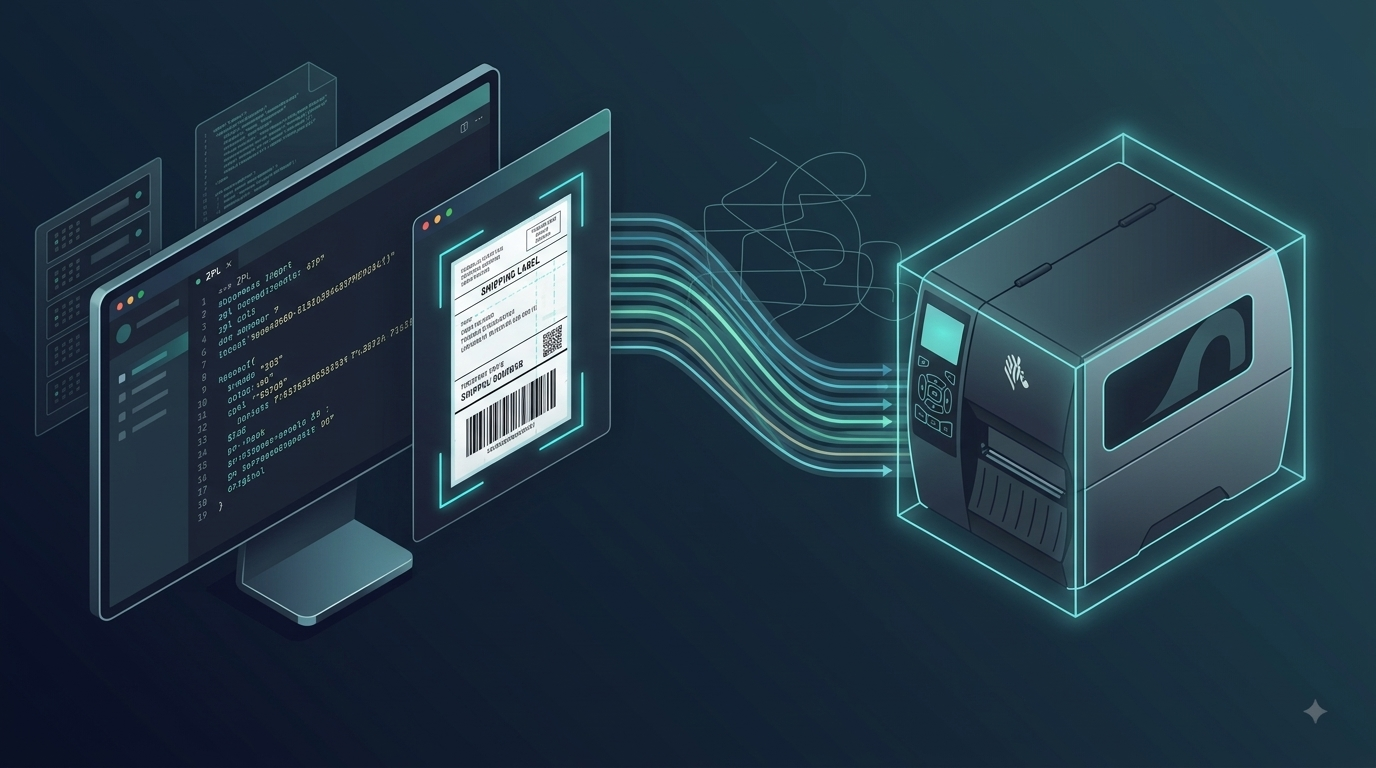
You write code that generates a ZPL payload. You want to see if the barcode fits inside a 4x6 inch label boundary. But your desktop is in an office on the 3rd floor, and the Zebra ZT410 industrial printer is located 200 meters away on a busy warehouse packing floor.
So you either:
There is a much better way to build a deterministic local-first feedback loop for ZPL development.
ZPL II is a declarative printer control language designed in the late 1980s. It was built for speed and embedded microcontrollers, not for developer experience:
^FO vs ^FT): ^FO (Field Origin) measures from the top-left of the field bounding box, while ^FT (Field Typeset) measures from the baseline of the font. Mixing them up causes text to jump outside label boundaries.^BC (Code 128) or unclosed graphics fields—the Zebra printer rarely throws an explicit error message. It simply skips the command or spits out blank thermal paper.To debug ZPL effectively, your local development cycle must resemble web development: instant preview on code change.
Most ERPs and WMS applications send print jobs to Zebra printers via raw TCP socket on port 9100 (Direct LPR/JetDirect).
You can intercept and capture incoming ZPL streams on your local machine or staging server using netcat:
# Listen on port 9100 and dump the raw ZPL stream into a debug file
nc -l -p 9100 > debug_label.zpl
Once captured, inspect the stream for clean framing between ^XA (start of label) and ^XZ (end of label).
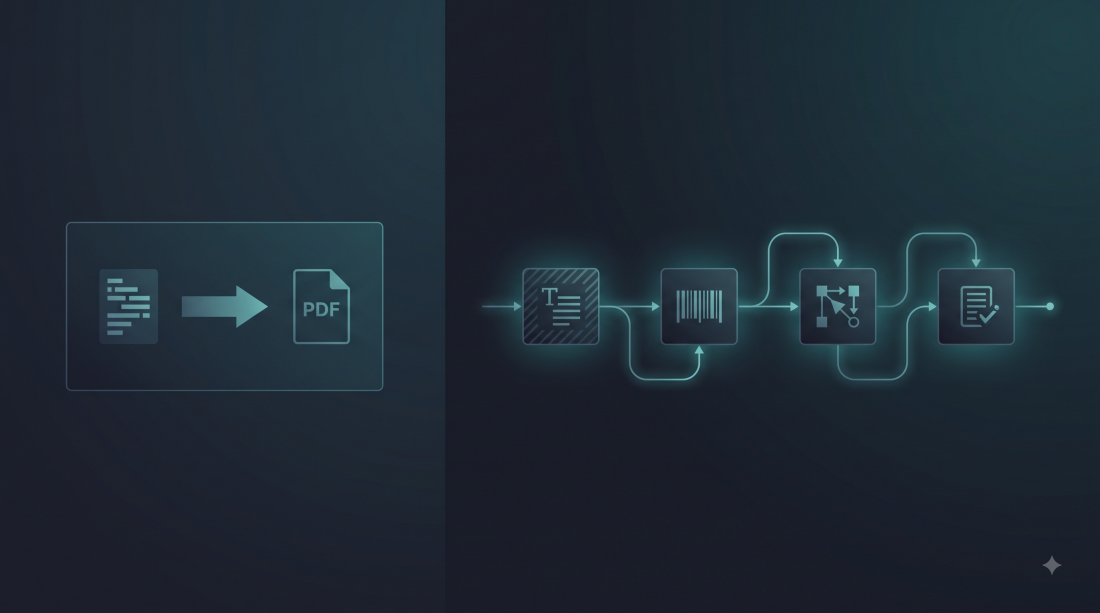
Instead of burning physical labels, convert the raw ZPL stream into high-resolution PNG or PDF instant previews.
Using the standalone zplflow CLI or local API:
# Render raw ZPL directly to high-res PNG preview at 203 DPI
zplflow render --input debug_label.zpl --dpi 203 --output preview.png
Because modern rendering engines evaluate font metrics, bar dimensions, and GS1 Application Identifier delimiters deterministically, you immediately see the exact barcode layout that would hit physical thermal ribbon.
When inspecting your virtual render, check for these three common failure modes:
1D barcodes like Code 128 and EAN require a minimum “quiet zone” (clear margin) on both ends of at least 10 times the narrow bar width. If your text or label border impinges on this quiet zone, handheld optical scanners in the warehouse will fail to beep.
^A0)When dynamically inserting variable-length client addresses, a fixed font width will cause long strings to bleed past the right margin. Use field blocks (^FB) to enforce word wrapping and automatic line breaking:
^FO50,150^FB500,3,0,L,0^A0N,28,28^FD123 Long Industrial Avenue, Logistics Hub North, Warehouse Bay 14^FS
^CI28)If your render displays character replacement symbols (? or garbage characters like ä), verify that you have injected ^CI28 directly following ^XA to instruct the printer to decode multi-byte UTF-8 sequences.
In modern CI/CD pipelines, label templates should be linted and tested automatically before deployment.
With zplflow, live pipeline previews cost 0 tokens:
Debug locally, automate in CI, and leave the thermal printers alone until production.
Need to preview, transform, and convert ZPL without touching warehouse hardware? Explore our developer documentation and free tier at zplflow.io.
Tags